The Display Behaviour tab allows you control how which displays are shown when a program starts executing and when a program finishes executing.
The default options are shown below:
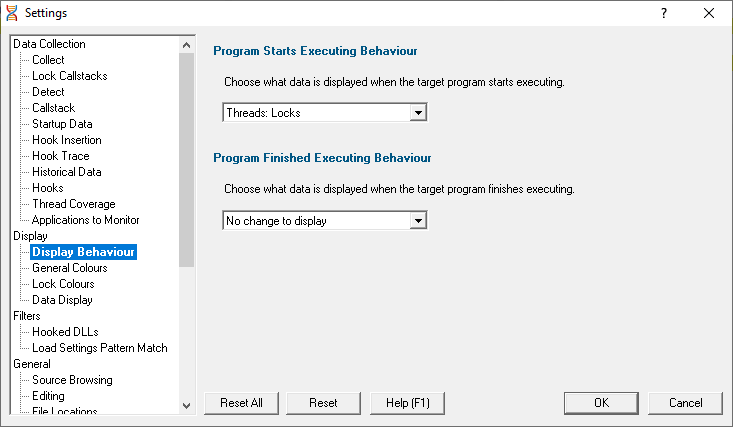
Thread Validator can change the current display to any of the following displays.
•Summary  the main display
•Locks : All Locks all locks in the application
•Locks : Locks per Thread locks displayed per thread that uses them
•Locks : Active Locks locks that are currently locked
•Wait Chains locks and waits and their relations to each other
•Threads : Locks thread history, plus locks for a given time segment
•Threads : Lock Order thread history, plus the order locks were acquired for a given time segment
•Analysis : Query perform queries on the locking data
•Analysis : Coverage code coverage for locking primitives
•Analysis : Active Objects locking primitives and handles and the callstack for the creation of the handle
•Analysis : Object Handles handles open in the target application
•Diagnostic : Diagnostic diagnostic information
•Diagnostic : Stdout text collected from stdout
•Diagnostic : Environment Variables environment variables from the program under test
•Diagnostic : Child Processes processes launched by the program under test
Program Starts Executing Behaviour
When Thread Validator starts monitoring the behaviour of an application the current display can automatically be switched to any of the displays listed above.
There is also the option not to change the display.
Program Finished Executing Behaviour
When Thread Validator has finished processing all the information from the target application the current display can automatically be switched to any of the displays listed above.
There is also the option not to change the display.
The type of display that may interesting for collected data depends on the type of program that was executed. Native, .Net or Mixed mode. To accommodate this we provide one setting for each of the three program types.
Reset All - Resets all global settings, not just those on the current page.
Reset - Resets the settings on the current page.