Once the example service and example client has been built, the next step is to test them using Coverage Validator.
Installing the service
If you haven't installed the service, do the following:
•open an administrator mode cmd prompt
•navigate to the directory containing the serviceCV.exe to install
•serviceCV.exe -install
Monitoring the service
Prerequisites
•example service has been installed, but not started (if service has been started, stop the service)
•example service and example client have been built
The following process is used to monitor the application launched by the service:
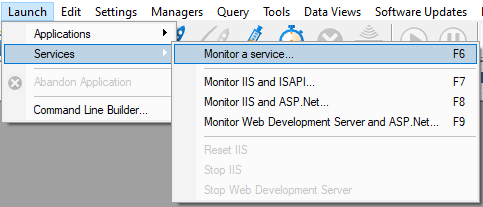
•From the Launch menu choose Services > Monitor a Service...
•The Monitor a service dialog is displayed
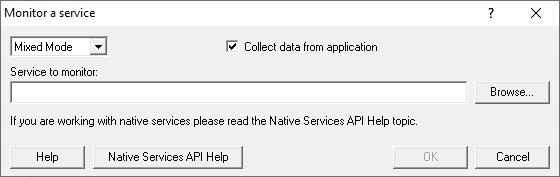
•Use Browse... to open the file chooser dialog and choose the service that will be monitored by Coverage Validator.
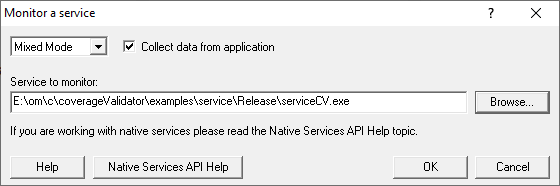
•Click OK
•Coverage Validator sets up a variety of parameters then displays a dialog box asking you to start you service. Click OK to dismiss the dialog
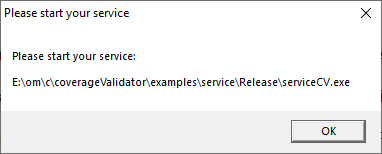
•Start your service. For the example serviceCV.exe do the following
oopen an administrator mode cmd prompt
onavigate to the directory containing the serviceCV.exe to start
oserviceCV.exe -start
oserviceCV.exe starts will be monitored by Coverage Validator
•The target application contacts Coverage Validator
•Data is collected until the service finishes executing
•Coverage Validator displays the results